Getting Started
Getting started with the Bruno collection
You can be up and running in a few minutes: download the archive for your release, open it in Bruno, select an environment, and set the variables for your UEM tenant.
Open the collection in Bruno
- Download the Bruno ZIP for the UEM release you use (see the REST API reference by release table).
- Extract the archive, then in Bruno choose Open Collection and select the collection folder (the one that contains
bruno.jsonif present), or open the folder you use for that release.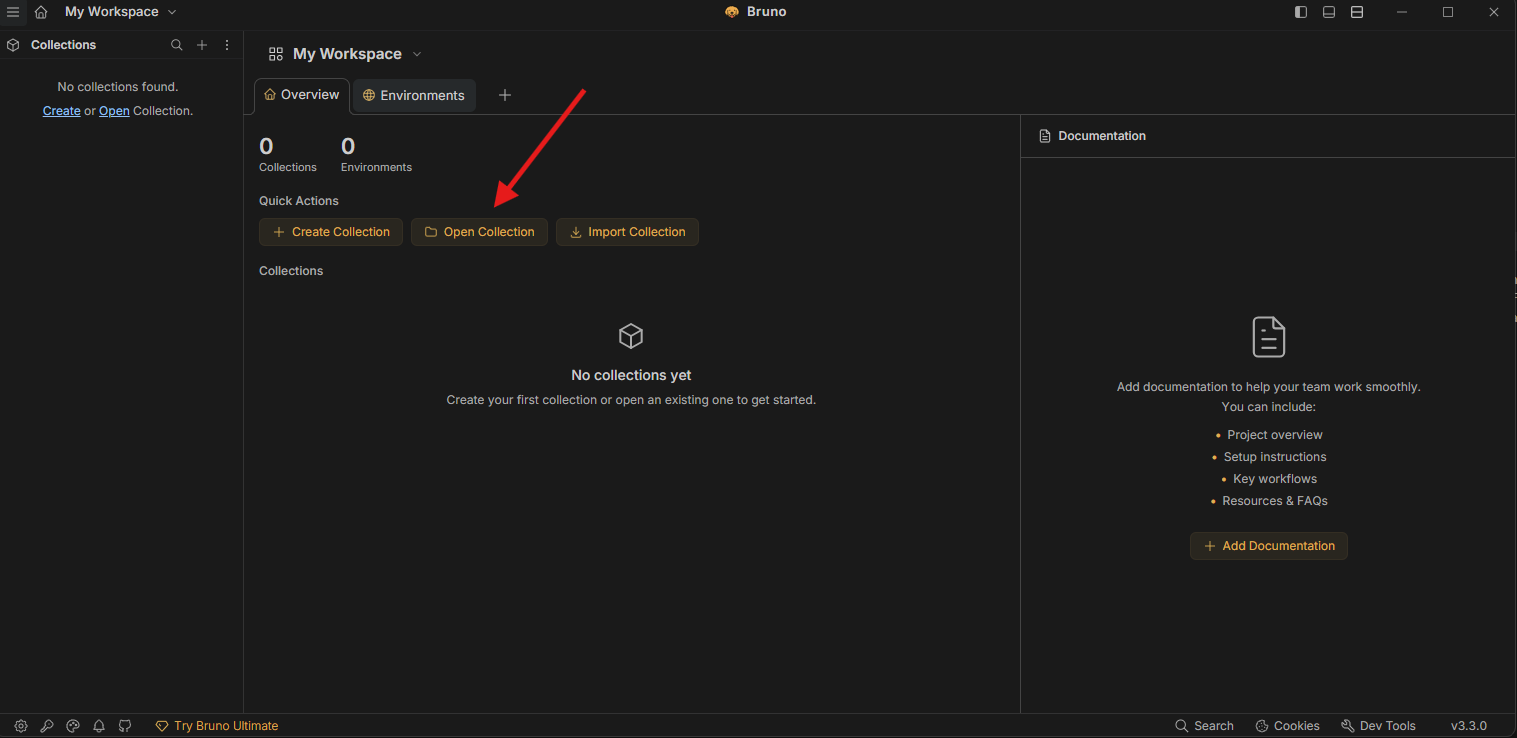
- In the Environments list, select the environment that matches your use case (for example a local or example environment). The collection ships with variable placeholders for OAuth and API host values.
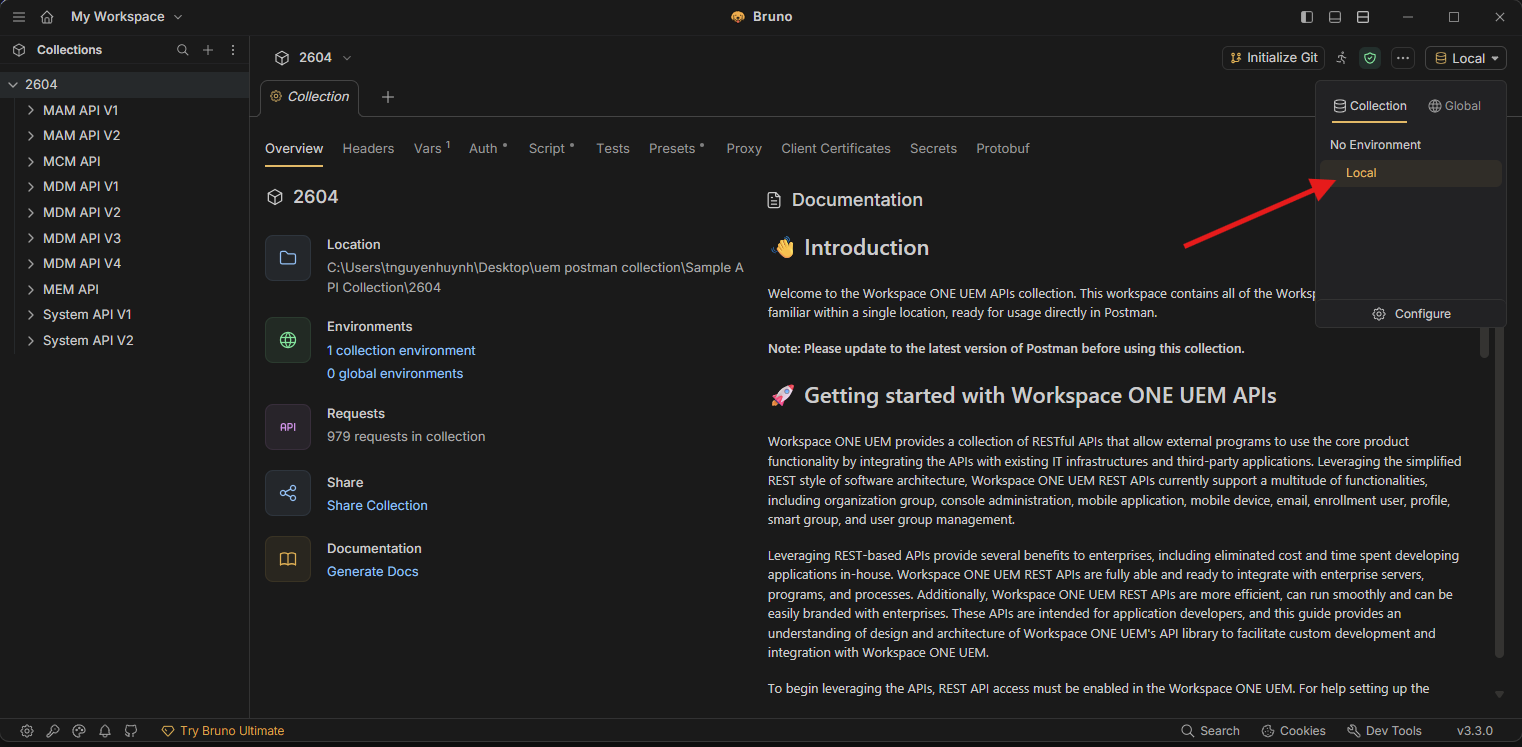
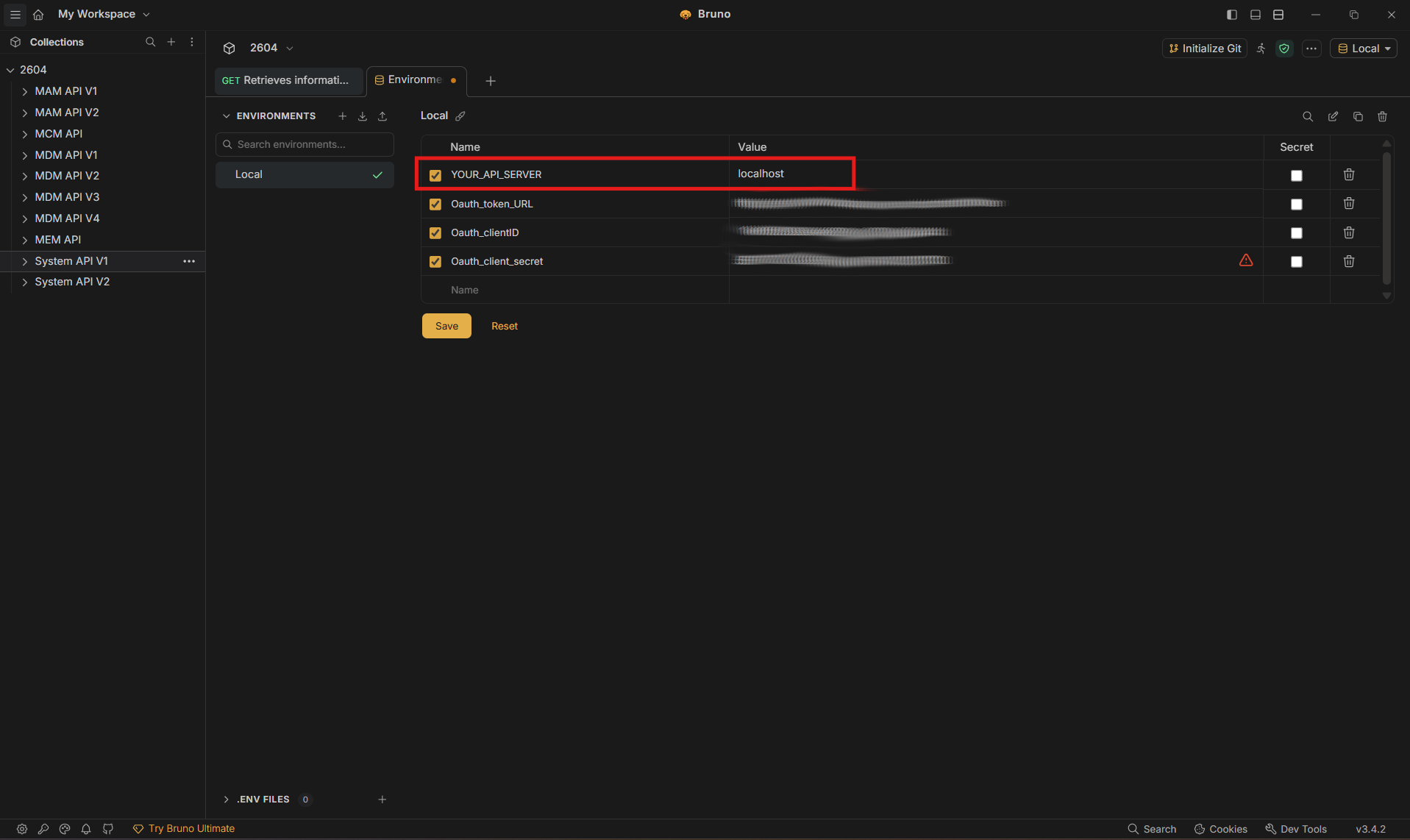
- On the upper right corner of the Bruno UI, select your environment and press configure. You can see a few variables that will be used by the API collection.
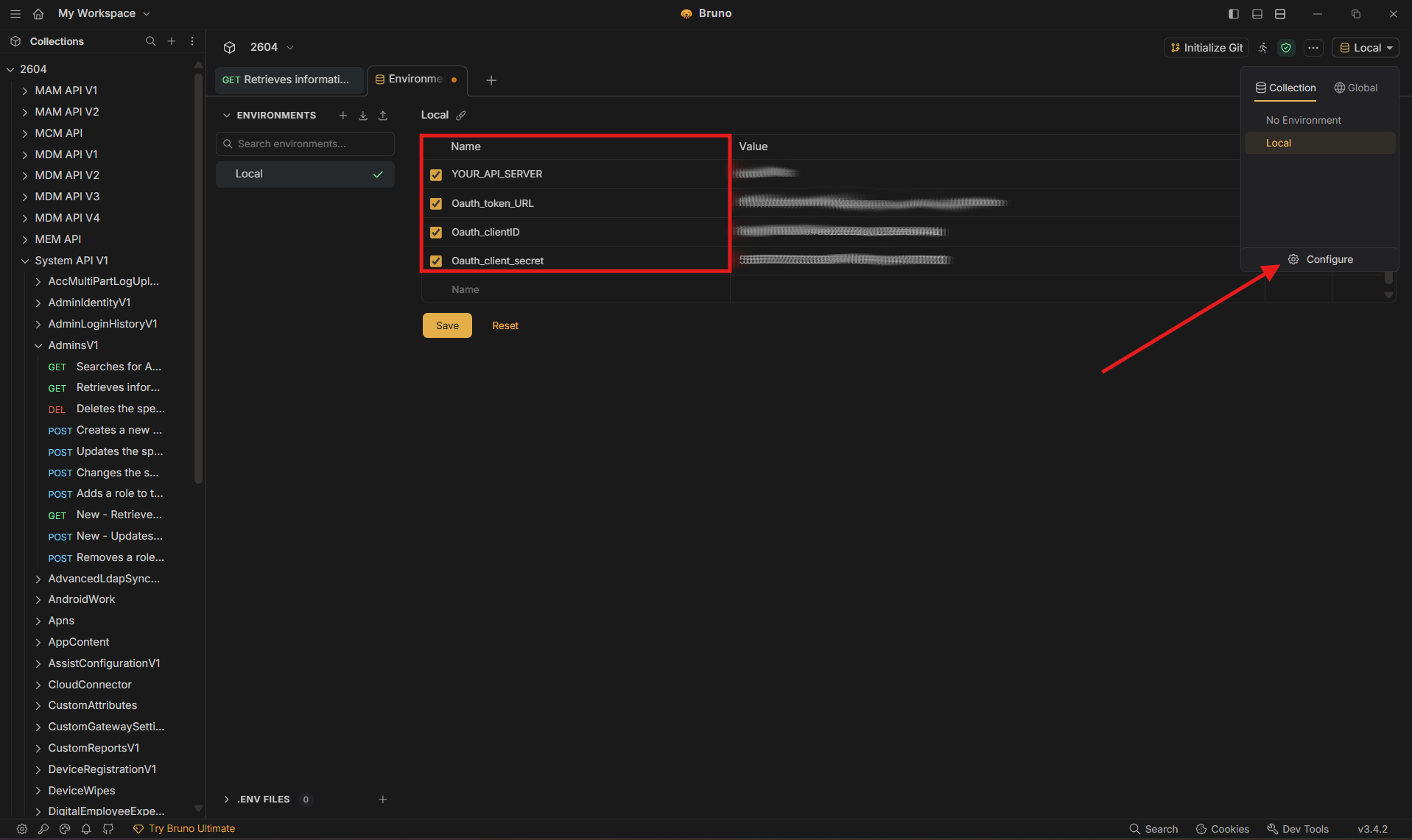
Collect Environment Variable Values
Before making the first API call, you must collect these five items:
- REST API URL
- Oauth token URL
- Oauth client ID
- Oauth client secret
REST API URL
To get these first two values, follow these steps:
- In the Workspace ONE UEM admin console, navigate to Groups and Settings > All Settings > System > Advanced > API > Rest API. Make sure you're in Customer OG or below.
- Copy the hostname part of the REST API URL (e.g. localhost).
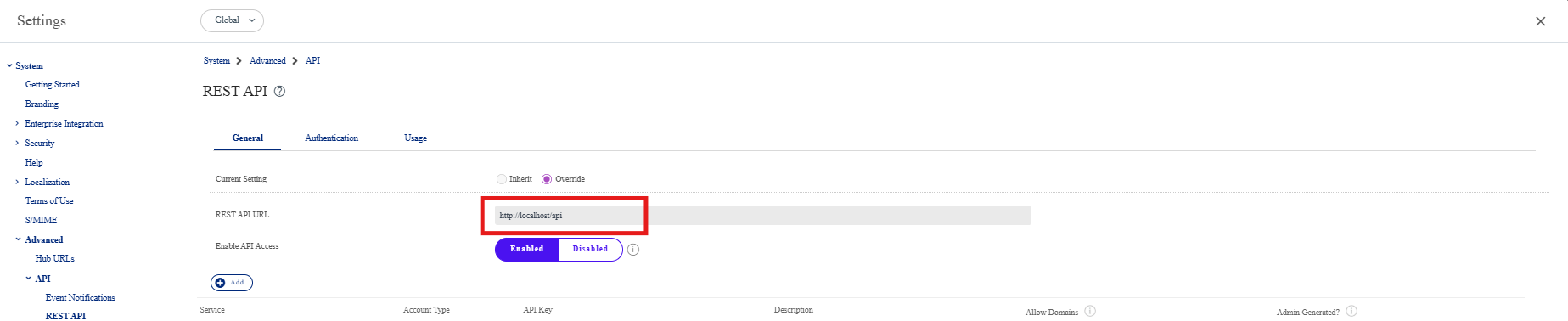
- Back in Bruno, add this value in the environment for the collection (variable names may match
YOUR_API_SERVERor similar—use the names your Bruno environment defines): - YOUR_API_SERVER
OAuth token URL
See the Datacenter and Token URLs KB and copy the Token URL for your region.
Note: You might also want to create a dedicated REST API admin role for your environment, which is described in that same article. The example in this brief guide does not cover a dedicated REST API admin role, and uses the console admin role instead.
OAuth client ID and client secret
In Workspace ONE UEM admin console, follow these steps.
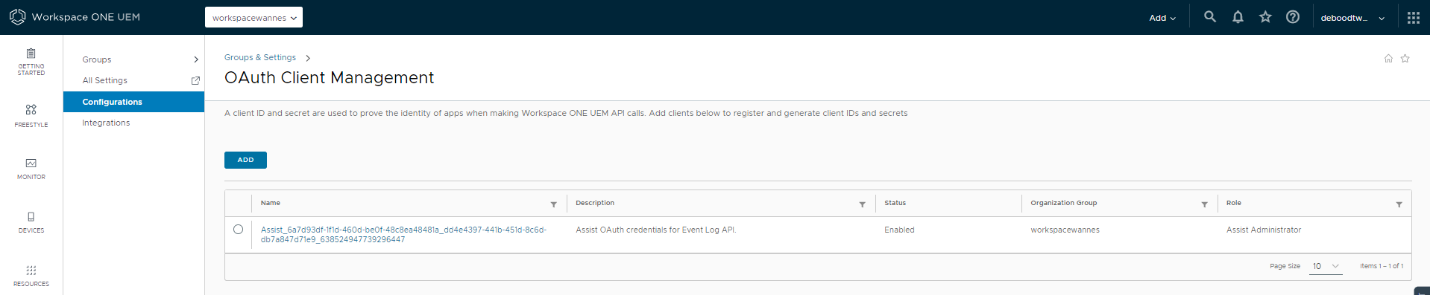
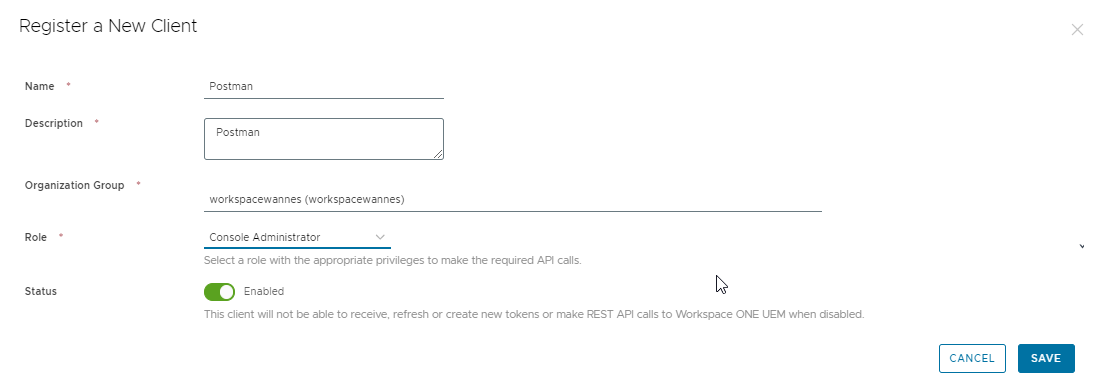
- Navigate to Group & Settings > Configurations > OAUTH client management and click Add.
- Copy the client ID and secret to a text file.
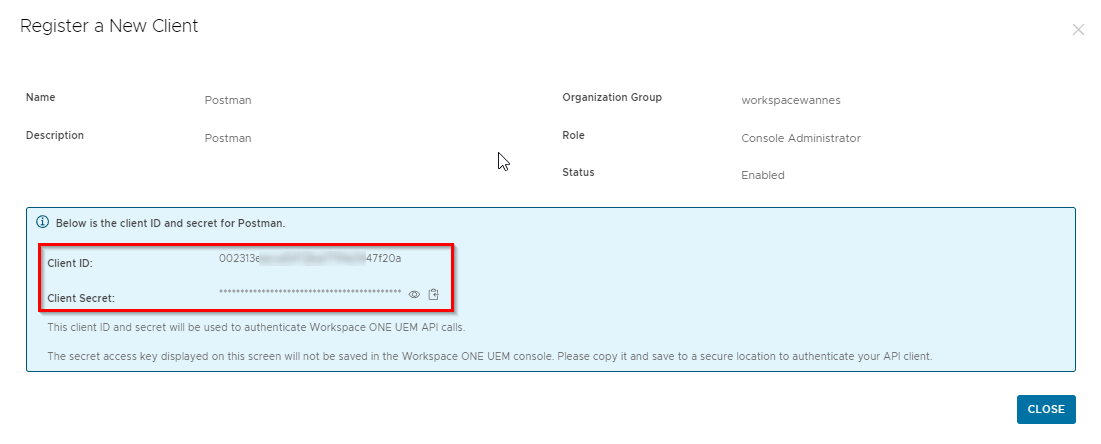
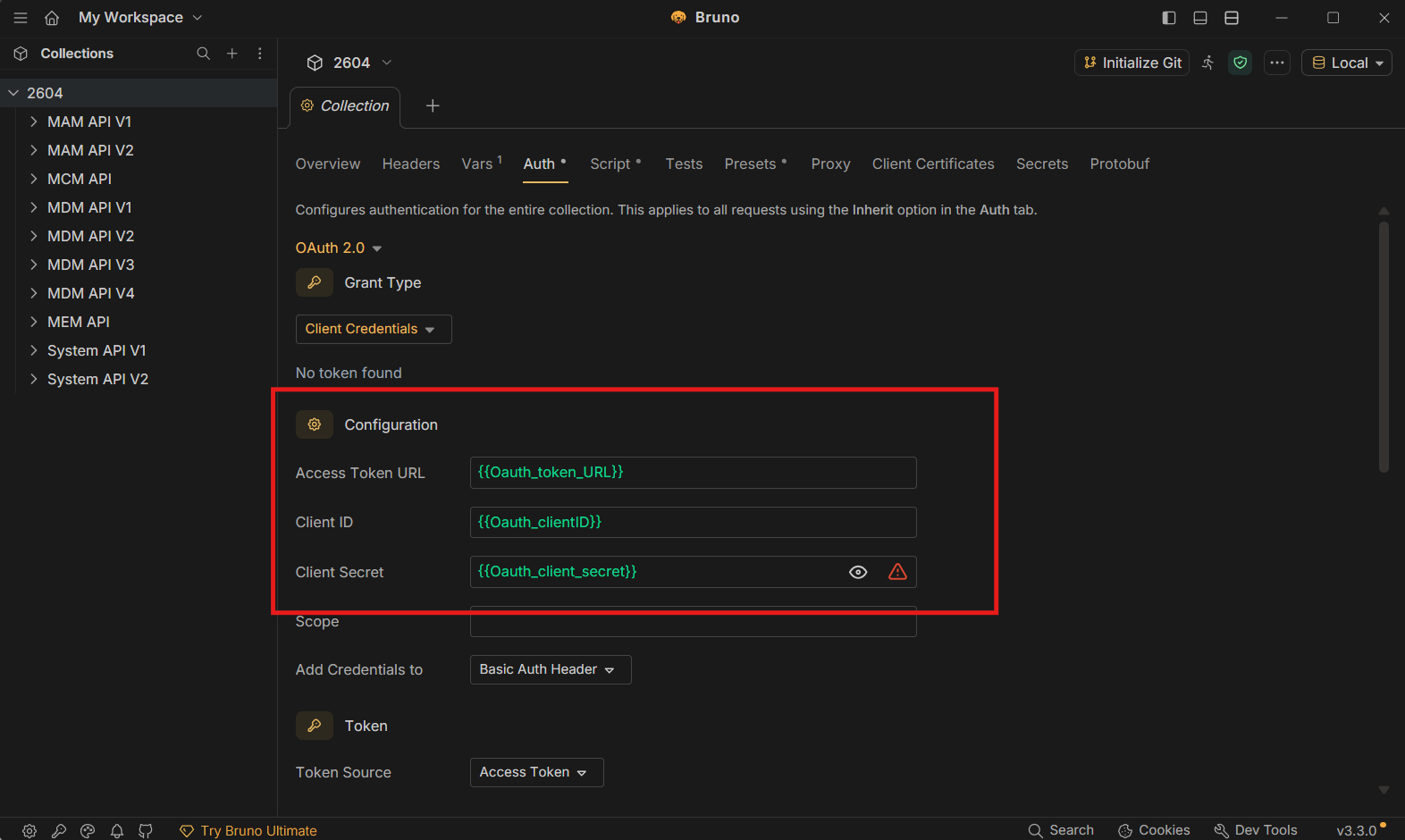
- Add these to the Auth section of the Collection.
- To obtain an access token, scroll to the bottom and click Get Access Token.
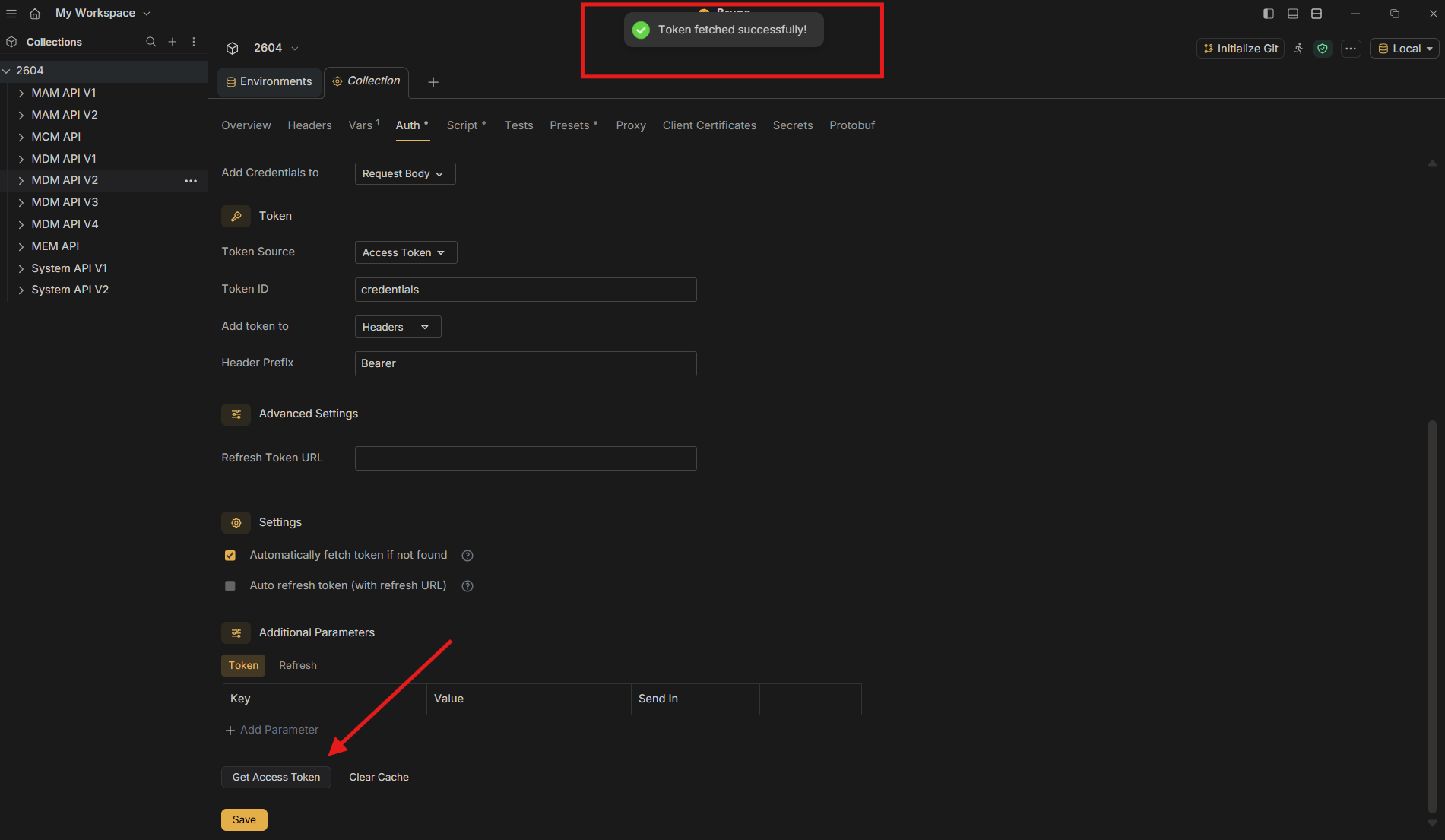
Now that you have successfully authenticated to Workspace ONE UEM, you have unlocked the access to all the API calls included in the collection.
Real-World Example: Find Devices and Apply Tag
Let's see how to achieve this simple goal without touching the UEM console: find Windows devices for user Wannes and apply a tag to those devices.
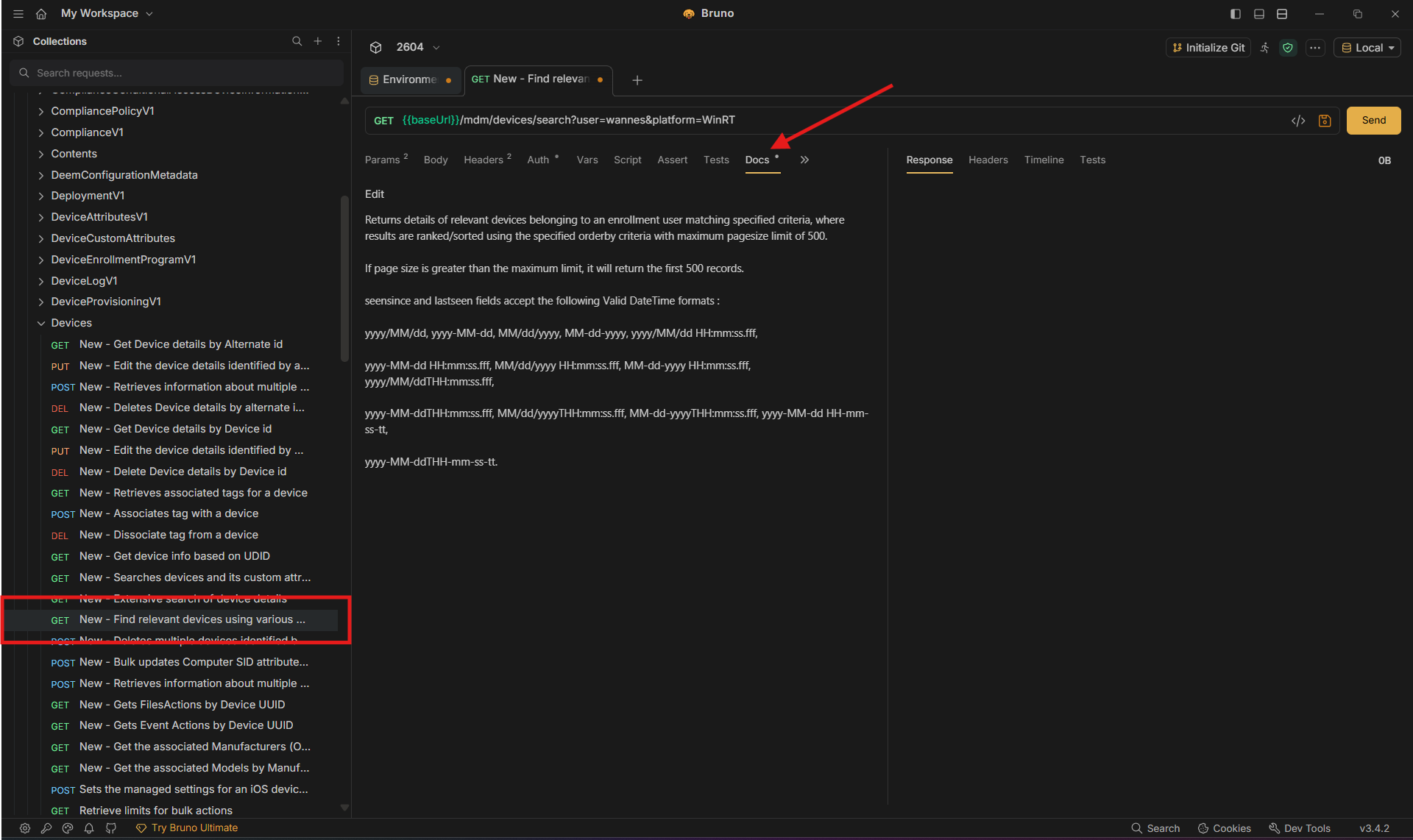
First, start with a request that returns the devices you are looking for. The API call {{ baseUrl }}/mdm/devices/search sounds like the correct one.
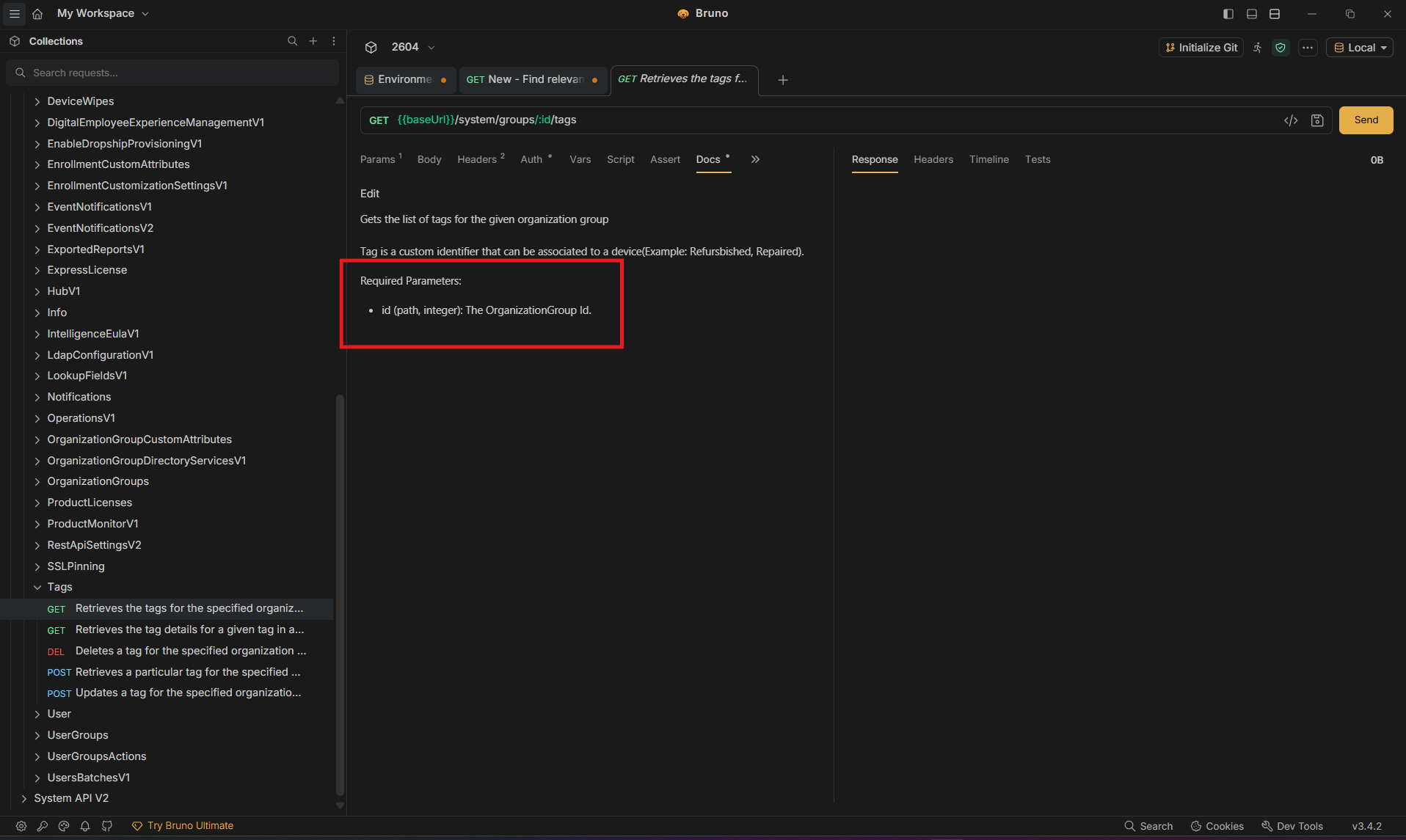
To find out the purpose of a specific API call, see the documentation section. You will find a short description and additional details for mandatory and optional parameters.
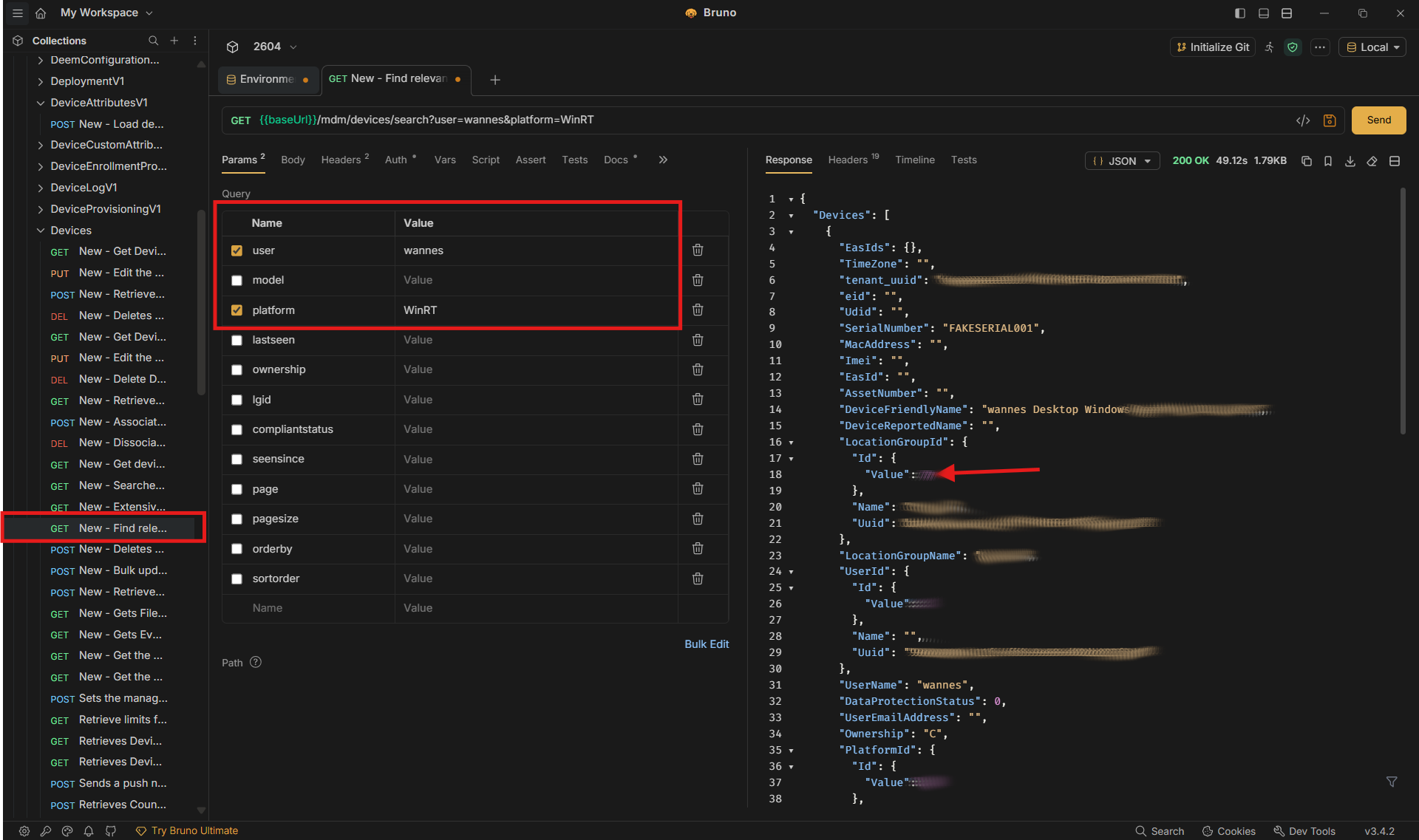
- Copy the values of the
LocationGroupIdand deviceId(located near the end) attributes in the response body, you will use these values later. -
The next step would be to obtain the available tags from UEM. This requires the following API:
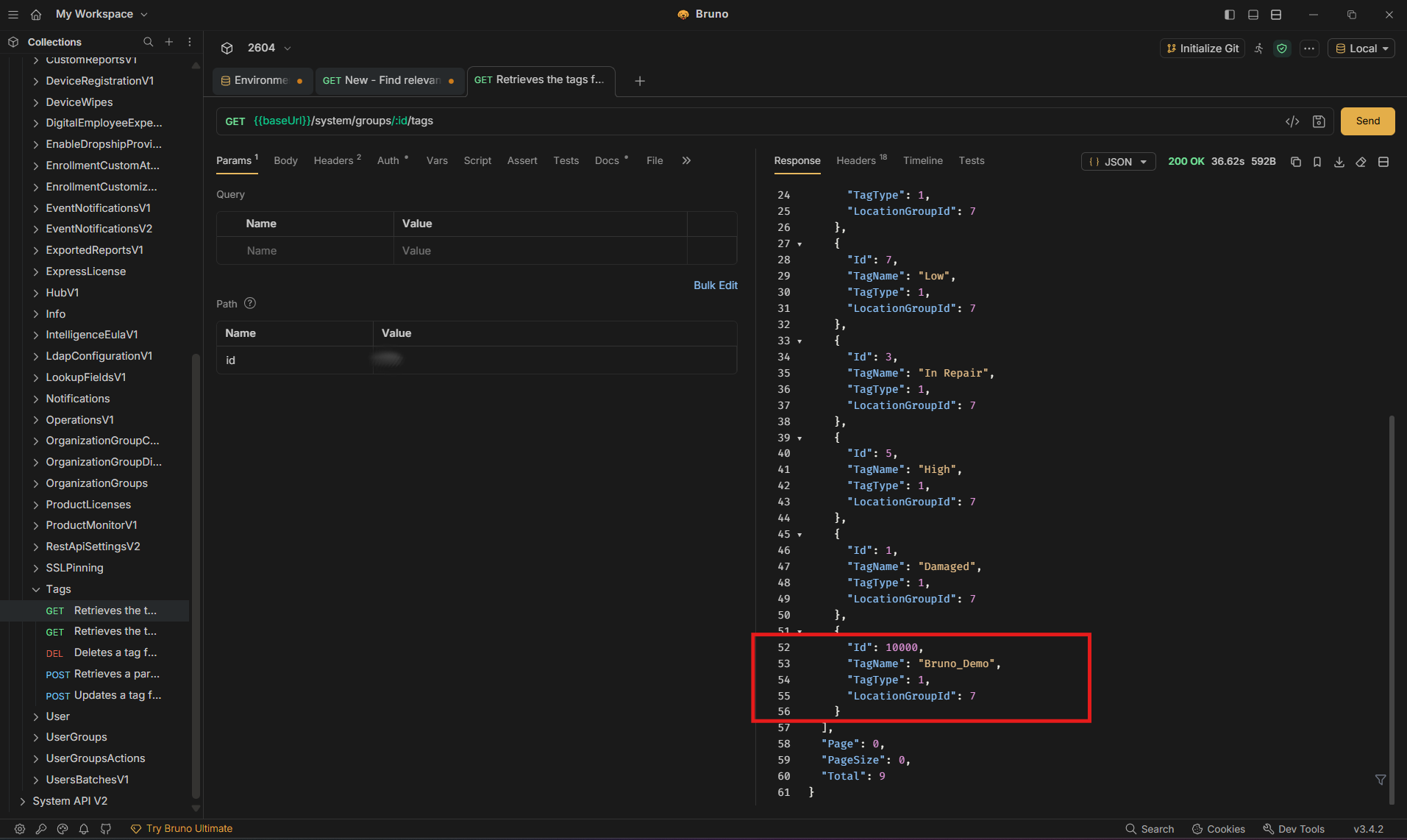
{{ baseUrl }}/system/groups/:id/tags, which is located under System API V1 > Tags. In the documentation section of this API, the PATH variable mentioned is mandatory, so the Organization Group ID value obtained with the previous call needs to be added to the Params tab.
-
In the response body, you will find the available tags for the given Organization Group. Note down the Id value of the tag, you will need it for the final API call to assign a tag. Lastly, execute the API call that applies the selected tag to the device, using
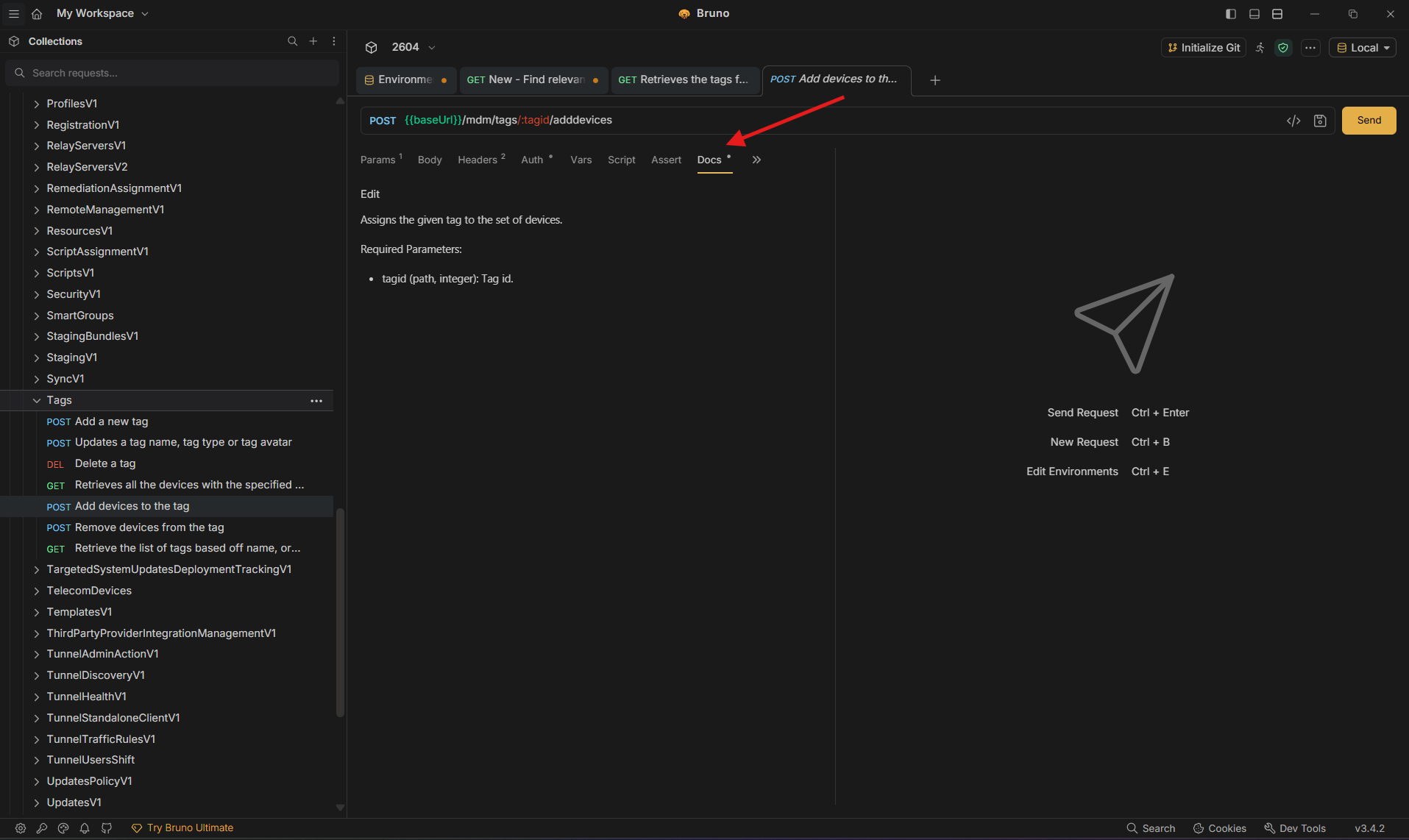
{{ baseUrl }}/mdm/tags/:tagid/adddevices, located in MDM API V1 > Tags. - As shown in Bruno, the tag ID is a mandatory value. Enter the tag ID from the previous call in the request Params (or path variables).
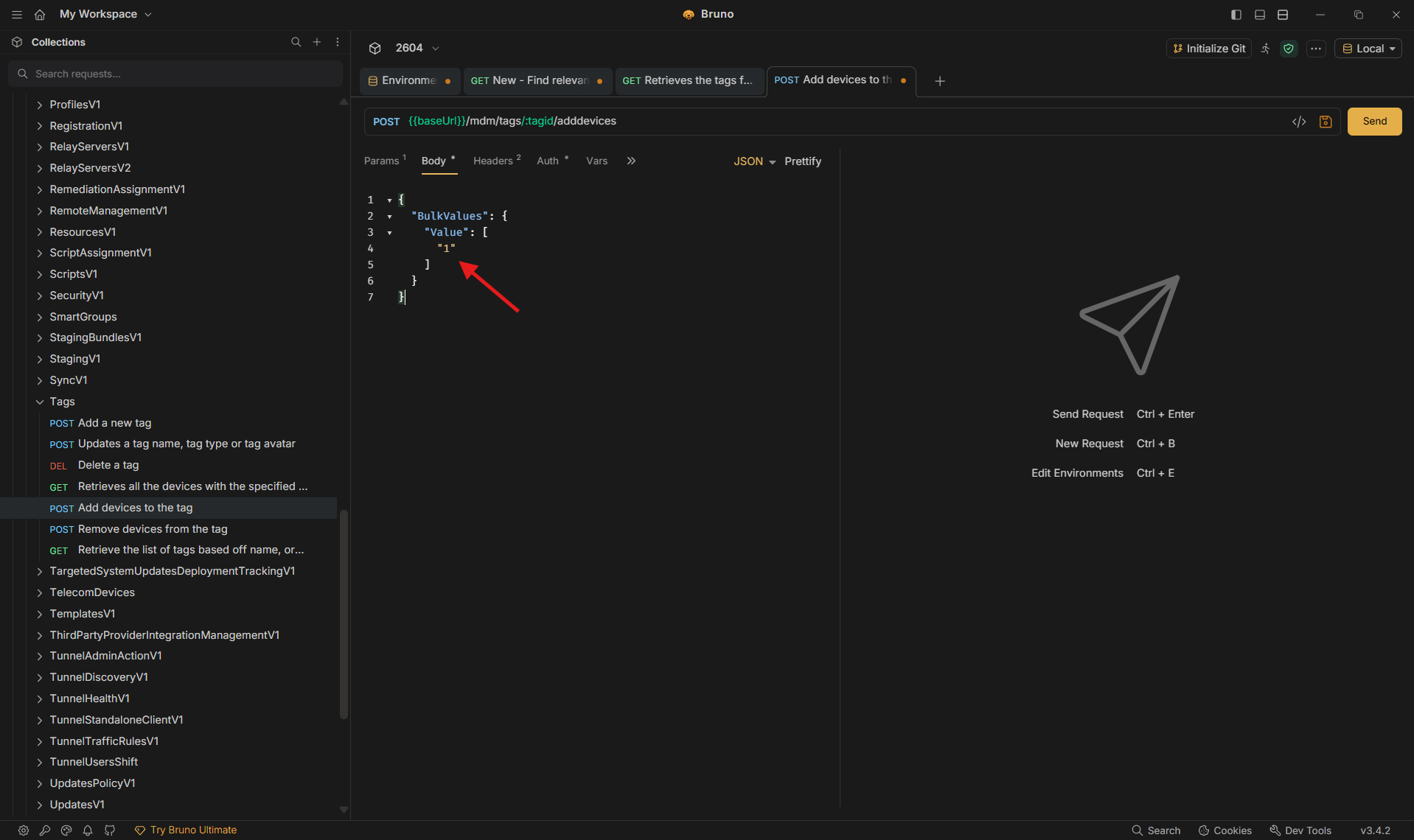
- In the Body tab, add the device ID obtained with the first API call.
- Click send and check the UEM console for the result.

Error Handling
In case of an error, review response output and any script / console output Bruno shows for the request.
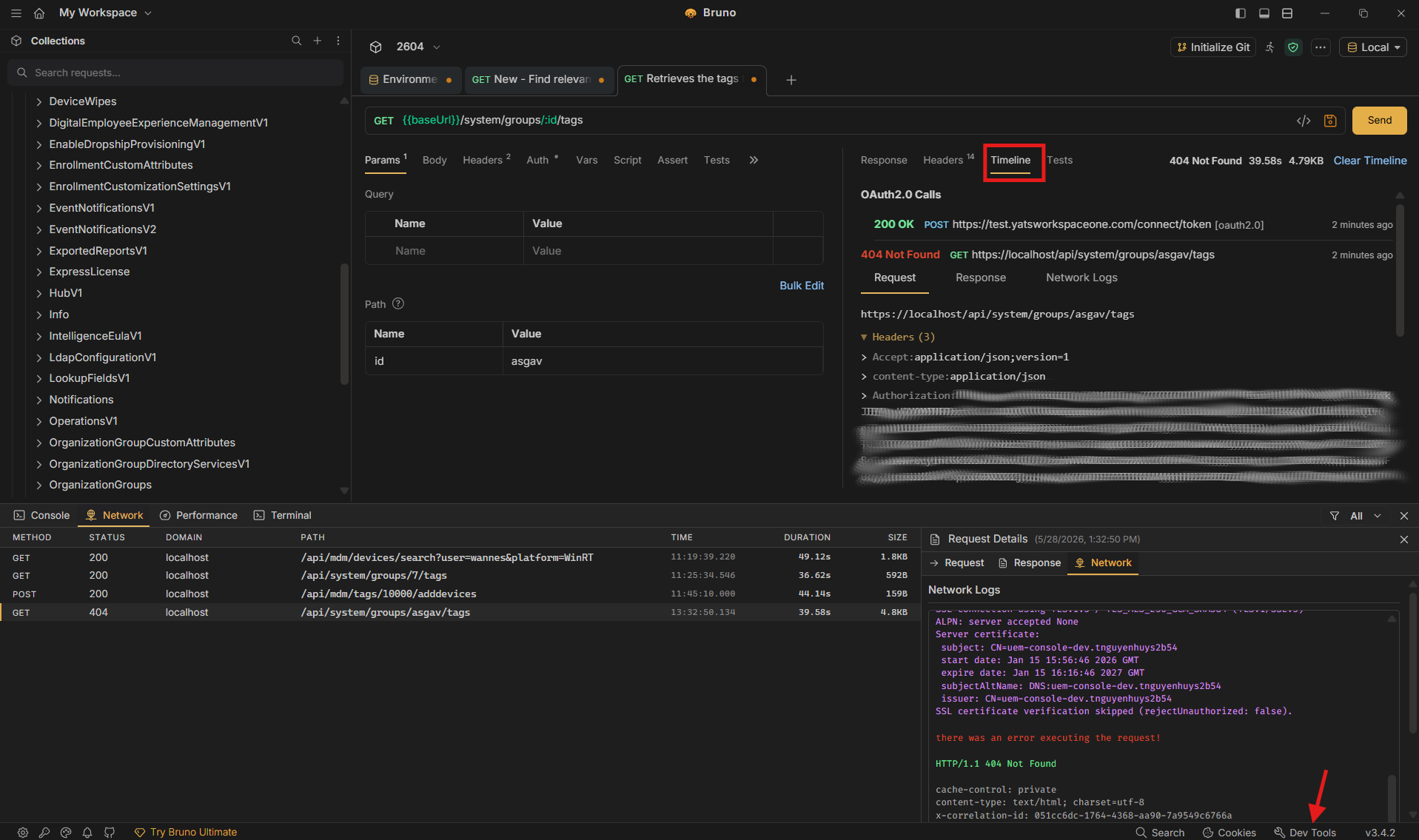
Additional Considerations
Now that you know which API calls to use to reach our goal, you can proceed to automate the process if needed. Bruno can generate code snippets for requests in several languages from the request view, where supported.
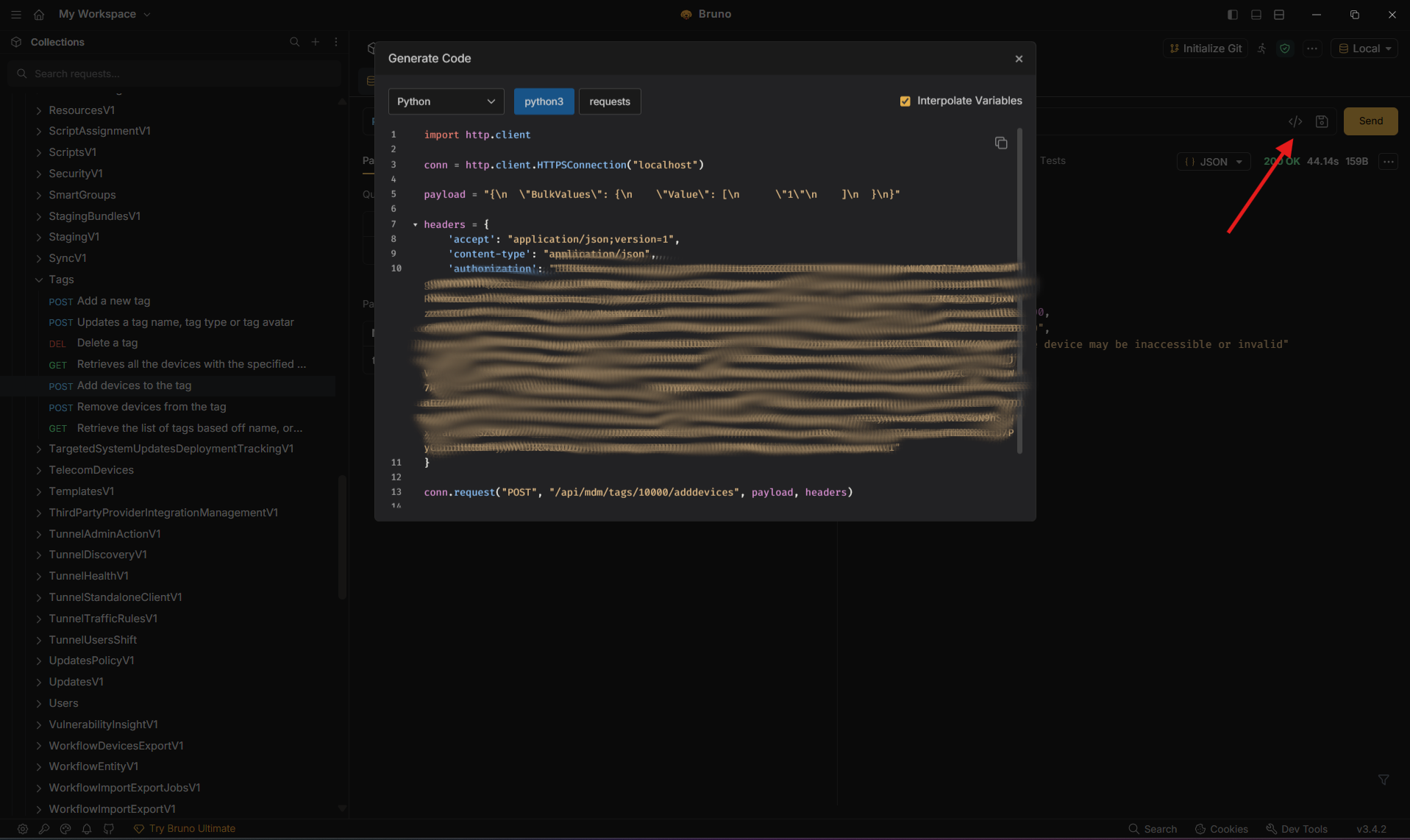
Below is a real-world example of a script built for a customer. In short, it does the following things:
- Retrieves all available tags in a specific Organization Group.
- Retrieves all devices enrolled in the last X number of days.
- Checks the first five characters of the Asset Number that the user entered during enrollment.
- If it can find a tag that matches these 5 characters, that tag is assigned. If no match is found, a fallback tag is assigned.
These tasks that are not natively available in the Workspace ONE UEM console, but can easily be tackled using the REST APIs described here (client examples below use PowerShell; adapt as needed for your toolchain).
################################################################################## Parameters

#################################################################################

# Define the OAuth endpoint, client ID, and client secret

$tokenUrl = "<provide Token URL>"

$clientId = "<provide Oauth Client ID>"

$clientSecret = "<provide Oauth Client Secret>"

$api_server_url = "<provide API Server hostname (asXXXX)>"

$aw_tenant_code = "<provide API key>"

$LocationGroupID = "<LG_ID>"

$numberOfDays = 1


#################################################################################

# request token

#################################################################################

# Define the OAuth request parameters

$body = @{

    grant_type    = "client_credentials"

    client_id     = $clientId

    client_secret = $clientSecret

}


# Make the OAuth token request

$oauth_token = Invoke-RestMethod -Uri $tokenUrl -Method Post -ContentType "application/x-www-form-urlencoded" -Body $body


#################################################################################

# Get available tags in given Organization group

#################################################################################

$headers = New-Object "System.Collections.Generic.Dictionary[[String],[String]]"

$headers.Add("Accept", "application/json;version=1")

$headers.Add("Authorization", "Bearer $($oauth_token.access_token)")


$availableTags = Invoke-RestMethod "https:// $api_server_url.awmdm.com/api/system/groups/$LocationGroupID/tags" -Method 'GET' -Headers $headers


# Store tags in a dictionary for fast lookup

$tagDict = @{}

foreach ($tag in $availableTags.Tags) {

    $tagDict[$tag.TagName] = $tag

}


# Add the special tag for empty or invalid asset numbers

$emptyOrInvalidTagName = "emptyorinvalidassetnumber"

$emptyOrInvalidTagID = $tagDict[$emptyOrInvalidTagName].Id


#################################################################################

# get devices enrolled in the last X days

#################################################################################

$startDate = (Get-Date).AddDays(-$numberOfDays).ToString("yyyy/MM/dd")


$recentlyEnrolled = Invoke-RestMethod "https:// $api_server_url.awmdm.com/api/system/users/enrolleddevices/search?enrolledsince=$startDate" -Method 'GET' -Headers $headers


#################################################################################

# Match AssetNumber (first 5 characters) with TagName and assign tag

#################################################################################


foreach ($device in $recentlyEnrolled.EnrolledDeviceInfoList) {

    $tagID = $null

    if (![string]::IsNullOrEmpty($device.AssetNumber) -and $device.AssetNumber.Length -ge 5) {

        $assetNumberPrefix = $device.AssetNumber.Substring(0, 5)

        if ($tagDict.ContainsKey($assetNumberPrefix)) {

            $tagID = $tagDict[$assetNumberPrefix].Id

        }

    }


    # If no matching tag found, use the emptyOrInvalidTagID

    if ($null -eq $tagID) {

        $tagID = $emptyOrInvalidTagID

    }


    $deviceID = $device.DeviceID


    $body = @{

        BulkValues = @{

            Value = @($deviceID)

        }

    } | ConvertTo-Json -Compress


    $response = Invoke-RestMethod "https:// $api_server_url.awmdm.com/api/mdm/tags/$tagID/adddevices" -Method 'POST' -Headers $headers -Body $body


    # Output the response for each device

    $response | ConvertTo-Json

}